Let’s be honest for a second. In today’s world, handing over a paper business card often feels a bit… old school.
You give someone your card, they politely put it in their pocket, and that’s usually where it stays. Why? Because typing out a phone number, email address, or website URL from a piece of paper into a smartphone is tedious.
This is exactly where a QR Code works like magic. One scan, and boom—your contact details are saved instantly.
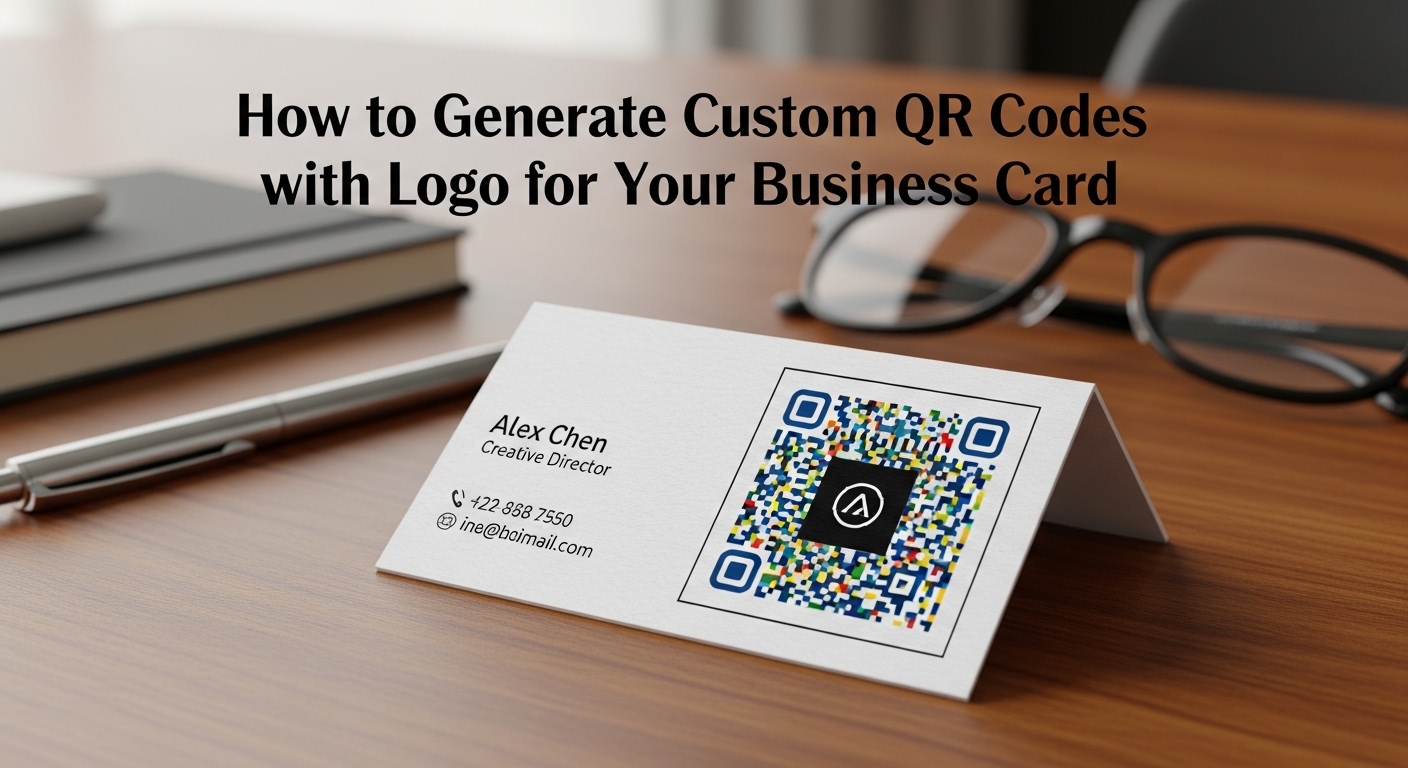
But here is the problem: standard, black-and-white pixelated squares look boring. If you have spent money designing a beautiful, colorful business card, slapping a generic black box in the corner just ruins the vibe.
So today, I’m going to show you how to create a custom QR code with your brand logo and colors that actually looks professional and works perfectly.
Why You Should Avoid Generic QR Codes
- Trust Factor: People are often hesitant to scan a random, generic black code (is it spam?). But when they see your company logo right in the center, it instantly feels verified and professional.
- Branding Harmony: If your brand color is navy blue, why settle for a black QR code? A custom code that matches your card’s color palette shows you pay attention to detail.
A Warning Before You Search Google ⚠️
If you search for “Free QR Generator,” you will find hundreds of tools. But most of them have a hidden trap that you only discover after you’ve printed 500 cards:
- The “Trial” Trap: After a month, they disable your code and ask for money to keep it active.
- Blurry Prints: They give you low-quality images that look terrible when printed.
- Privacy Risks: Many tools track your clients or store their data on their servers.
To avoid these headaches, I recommend using ToolsAid QR Studio. It’s completely free, requires no sign-up, and your code never expires.
💡 Even Better: If you often need to share links from your computer to your phone, you should check out the ToolsAid QR Studio Browser Extension. It sits in your browser and generates a QR code for your current tab with just one click. It’s perfect for testing your cards or sharing portfolios instantly.
Step-by-Step: Creating Your Branded QR Code
Let’s make one for your card in under 2 minutes.
1. Choose the Right Type
For business cards, you generally have two best options:
- URL: If you want to send people directly to your portfolio, LinkedIn, or website.
- vCard (The Best Option): When someone scans this, their phone’s “New Contact” screen opens automatically with your Name, Number, and Email pre-filled. They just have to hit “Save.”
2. Upload Your Logo
This is the game-changer. Go to the “Logo” section in the tool and upload your brand icon.
Pro Tip: Use a PNG file with a transparent background. It blends much better than a logo with a white box around it.
3. Match Your Colors
Change the QR code’s color to match your brand.
Important Rule: Always keep the background light (white is best) and the dots dark. If you inverse it (light dots on a dark background), many phone cameras struggle to read it.
4. Download in High Quality (Crucial!)
Please, do not just take a screenshot! For printing, you need sharp edges. Always download the file in SVG (Vector) or High-Quality PNG format. An SVG file can be stretched to any size by your printer without ever getting blurry.
3 Secrets for a Perfect Print
I have seen beautiful cards go to waste because of simple QR mistakes. Don’t let that happen to you:
- Don’t Make it Microscopic: To save space, don’t shrink the code too much. Keep it at least 0.8 inches (2 cm) wide. If it’s smaller than that, older smartphone cameras won’t be able to focus on it.
- The “Quiet Zone”: Leave a little bit of white space (margin) around the code. If you print design elements right up against the pixels, the scanner can’t tell where the code starts.
- The “Cheap Phone” Test: Before you print 1,000 copies, print one on a regular home printer. Then, try to scan it with the oldest, cheapest smartphone you can find in your house. If that phone can read it, every phone can.
Final Thoughts
Your business card is often your first impression. It shouldn’t just be a piece of paper; it should be a bridge to your digital identity.
If you want to create a custom code without installing any heavy software, give ToolsAid a try.
👉 Create Your Free Custom QR Code Here
👉 Get the QR Studio Browser Extension
(It’s private, runs in your browser, and costs absolutely nothing.)